








NewWindows in both directionsbeta

Mac and PC.
One desk.

One keyboard and mouse, a shared clipboard, Mac audio and windows in both directions. Over your local network, with no account.

macOS 14.2+ · Windows 10/11 · Free · Pro $10

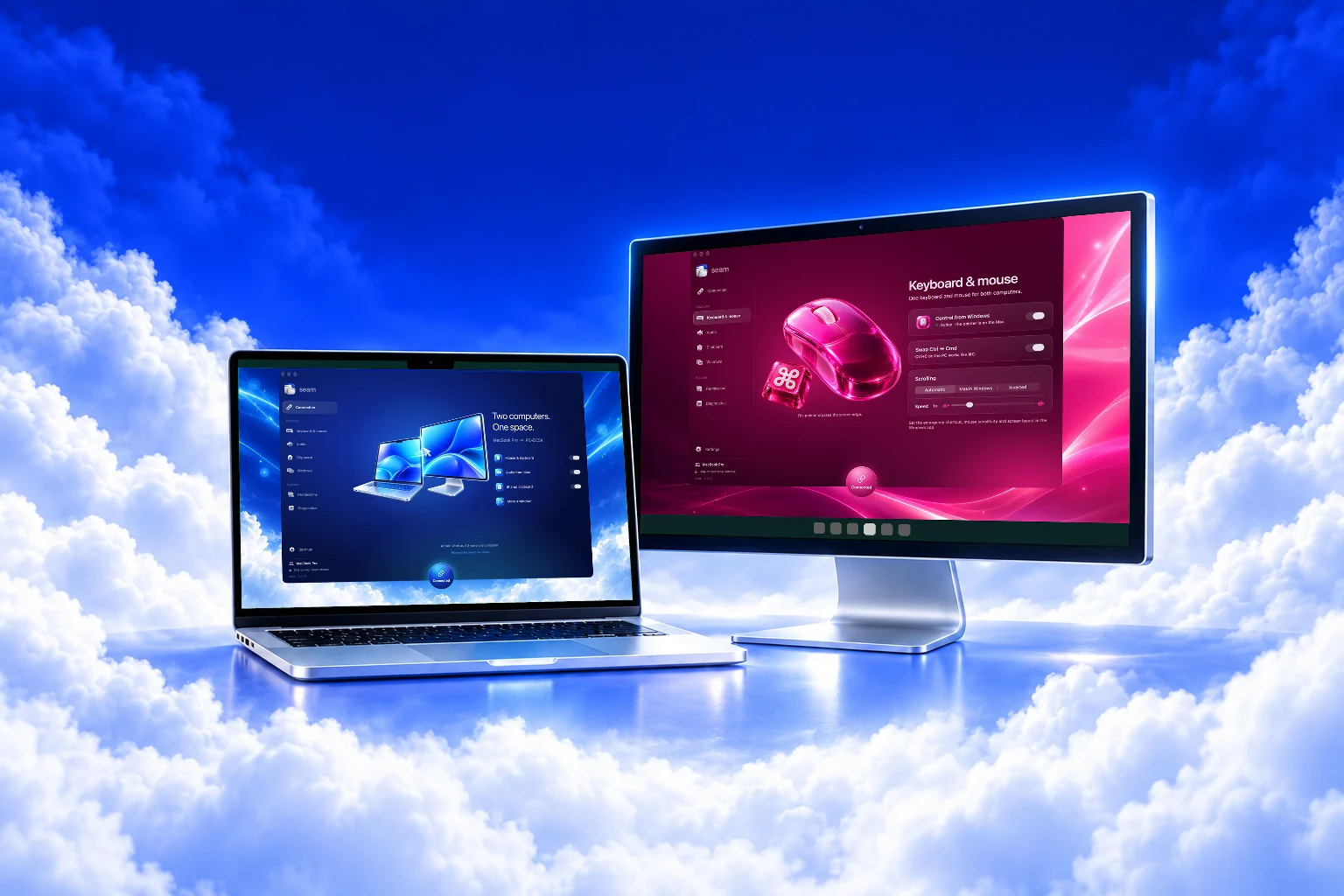
A MacBook showing Seam's Connection page and a PC monitor showing its Keyboard and mouse page, on a glowing desk among the clouds
  • No account
  • No cloud
  • Local network only
  • AES-256-GCM encryption
  • Signed updates

The desk your Mac was missing

Four features, one app on both computers.

This is Seam

Every feature has its own page in the app.

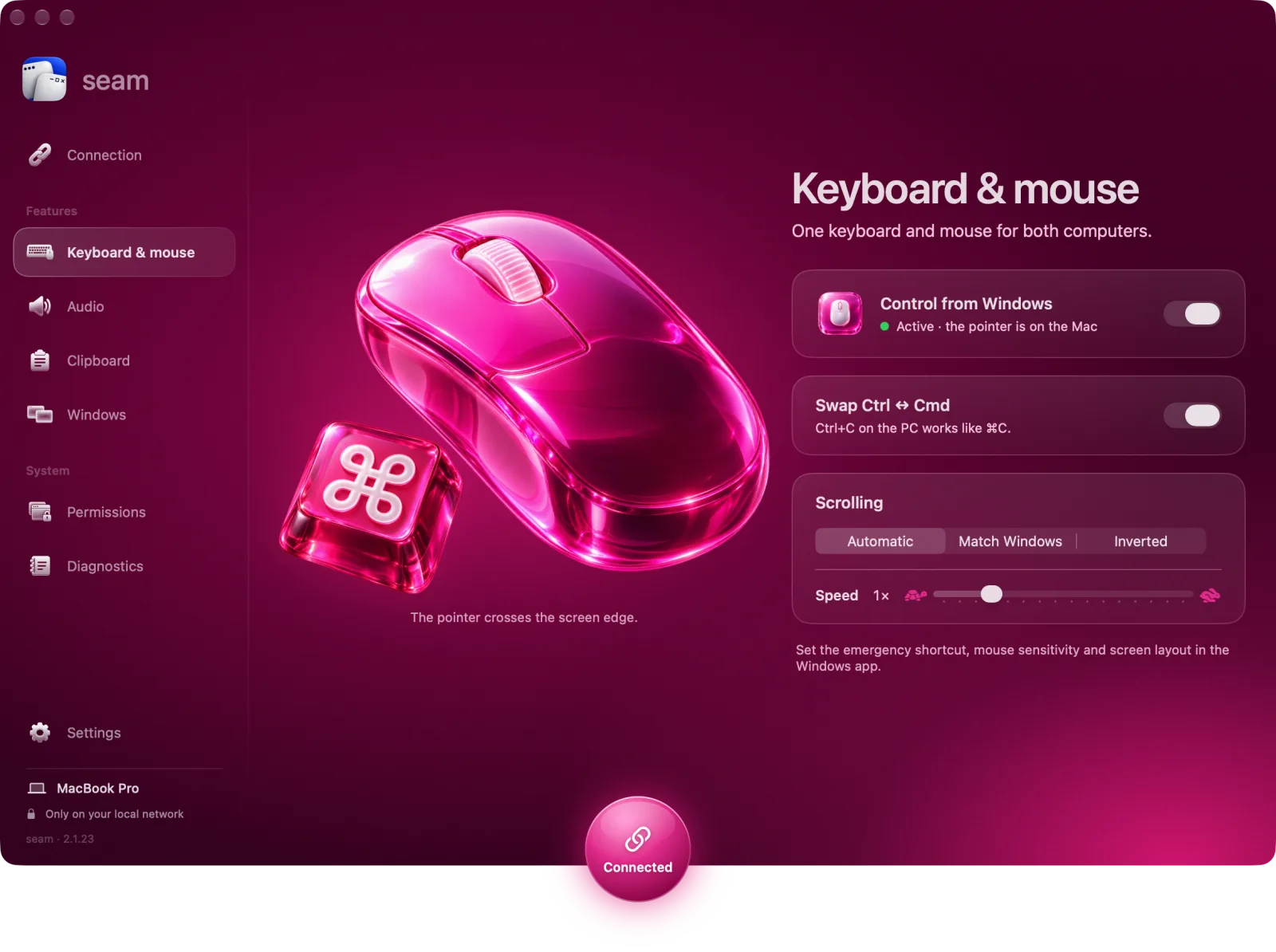
The Keyboard and mouse page in Seam on a Mac

Keyboard and mouse · 2 of 5

Three steps to one desk.

Download Seam
  1. Step 1

    Download Seam.

    One app for the Mac, one for the Windows PC. No account, and no installer on Windows.

    The Seam app icon
  2. Step 2

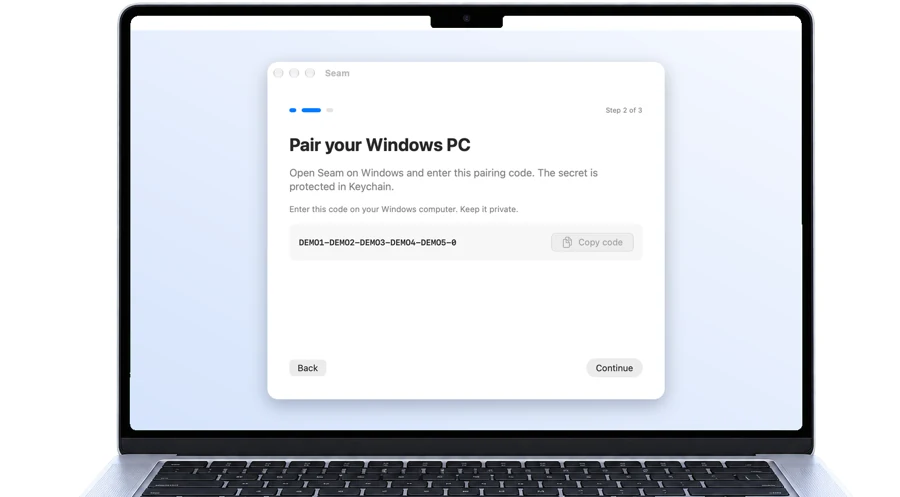
    Pair with a code.

    The Mac shows a pairing code. Type it on Windows and the computers are connected.

    A MacBook showing the Seam pairing screen with a code to type on Windows
  3. Step 3

    Move the cursor.

    Past the edge of the screen, and you're working on the other computer with the same keyboard and mouse.

    A white wireless mouse

Security and privacy

Your data never leaves home.

Seam works only on your local network. No servers, no account, no cloud. You pair the computers with a one-time code, and the secret goes into the Keychain on the Mac and DPAPI on Windows. Control, clipboard and audio are encrypted and protected against replay.

Encryption

AES-256-GCM

for control, clipboard and audio

Servers in between

0

everything stays on your local network

Every update

ECDSA

signature and SHA-256 checked before it installs

A hand holding a padlock

No ads, analytics or telemetry.

Seam goes online only to check for updates and, if you want, to download the virtual monitor driver. With Pro, it also checks your license key with Lemon Squeezy about once a week. Logs stay on your computer.

Privacy policy

Free to start.
Pro for $10, once.

Keyboard, mouse and text stay free forever. Pro adds audio, windows and images. No subscription.

Seam Free and Seam Pro compared
What's included

Pro works on both computers when either of them has a license or a trial.

Free

$0

forever, no account

Pro 7 days free

$10

once, no subscription

One keyboard and mouse with your screen layout
Text in the clipboard
Images and screenshots in the clipboard
Mac audio on the PC
Mac windows on the PC on a virtual display
Windows apps on the Mac
Local network only, AES-256-GCM
Signed automatic updates
Download free Buy Pro – $10
Buy Pro – $10 Download free

Pro works on both computers when either of them has a license or a trial.

Frequently asked
questions

Yes. Both computers need to be on the same local network. A cable gives the lowest latency, especially for audio and windows.

You pay $10 once, with no subscription. The license key arrives by email; enter it in Seam → Settings → License. The license never expires and includes every Seam 3.x update.

Up to 3 computers per license. You only need one license for a pair: Pro works on both computers when either of them has a license or a trial. To move the license to a new computer, choose Deactivate on the old one.

The trial lasts 7 days and needs no account or card. When it ends, audio, windows and images in the clipboard pause until you buy Pro, and your settings stay as they were. Keyboard, mouse and text in the clipboard keep working, free forever.

Yes. Seam itself only needs your local network. Pro checks the license about once a week when the computer is online and keeps working offline for up to 30 days after the last check. After that, connect for a moment and Seam checks it again.

Yes. Payments and refunds are handled by Lemon Squeezy, our reseller and merchant of record; the refund policy has the details. After a refund the license stops working and Seam goes back to the free features.

Accessibility (to control the mouse and keyboard) and System Audio Recording. To move windows, also Screen Recording. On first launch the app walks you through each one.

No. The Mac app is signed with an Apple Developer ID and notarized by Apple, and the Windows app has an Authenticode signature. If SmartScreen still asks about a brand-new release, choose More info → Run anyway. You can also check each file against SHA256SUMS.txt in the release.

Press the emergency key on Windows: Scroll Lock by default. In Settings you can pick Pause, F12 or Ctrl + Alt + Shift + B if your keyboard has no Scroll Lock.

Both apps check for new releases on GitHub, verify the checksum and signature, and install with one click. You can turn the check off in Settings.

Yes, with Seam Pro (in beta). A Mac window dragged past the edge shows up on the Windows desktop. Windows apps on the Mac need a one-time install of a virtual monitor, with administrator approval.

Download Seam.

Free to download, no account and no cloud. Install the app on both computers.

Seam for macOS

Control your Mac with the PC's keyboard and mouse, and hear the Mac on Windows.

Free

Pro $10 once, 7-day trial included

  • macOS 14.2 or later
  • Apple Silicon and Intel in one app
  • Updates itself, signature verified
  • Works only on your local network
Download for Mac

Seam for Windows

The PC's keyboard and mouse control the Mac. Clipboard, audio and windows move between the computers.

Free

one file, no installer

  • Windows 10 and 11 (x64)
  • No .NET install needed
  • Updates itself, signature verified
  • Mac windows on the taskbar (Pro, beta)
Download for Windows

All releases and checksums on GitHub